

Last updated: October 24, 2026
Quick Answer: Most people can reduce screen-related migraine trigger exposure at work by changing brightness, text size, monitor placement, and glare first; in practice, that often starts with 110% to 125% display scaling, a monitor at roughly arm’s length, and a screen that does not outshine the room. In this guide to How to Reduce Screen-Related Migraine Trigger Exposure at Work, the goal is to lower glare, reduce flicker, and make your monitor easier to read for longer stretches. For general migraine guidance, see the American Migraine Foundation, the NINDS migraine page, and the CDC workplace accommodations guidance.
Key takeaways
- Start with the screen you already have: brightness, text size, and placement often matter more than buying a new display.
- Match the monitor to the room, not the other way around. The biggest trigger for many people is the contrast between a bright screen and poor office lighting.
- Use blue light filters as one tool, not the whole plan. They can help some people, but they do not solve glare or flicker.
- Breaks work best when they are scheduled before strain builds up.
- If a setting makes text harder to read, it can backfire by increasing squinting and effort, even if it looks “gentler.”
What to fix first in your workscreen setup
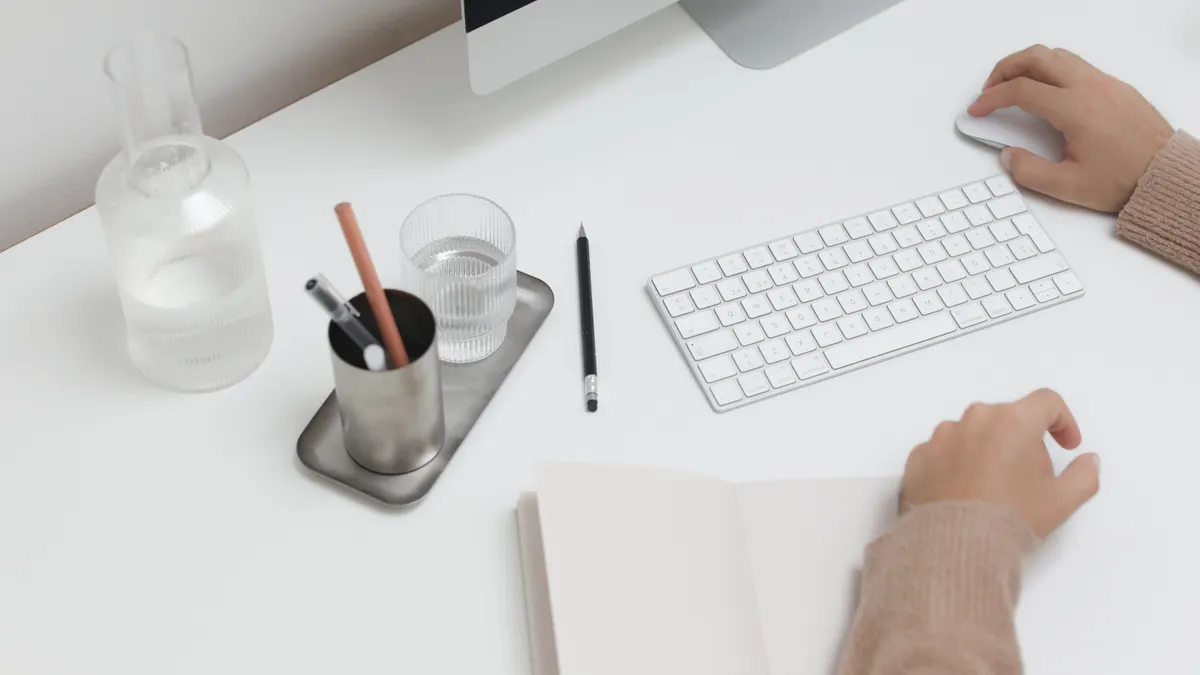
The fastest way to reduce screen-related migraine trigger exposure at work is to fix brightness, glare, and viewing distance before you touch anything else. Those three changes usually give more relief than changing color themes or buying tinted glasses.
Start with the monitor itself. A standard office display often looks comfortable only after it is matched to the room’s light level. If the screen is blasting your eyes in a moderately lit office, that is a problem. If you are squinting because the screen is too dim, that is another one. The right setting is the one that makes text readable without making the background feel like a light box.
A practical first pass looks like this:
- Set the monitor brightness to roughly match the room, not to maximum. The result should be that white pages do not glow and black text stays crisp.
- Increase text size before you increase brightness. On many systems, 110% to 125% display scaling or a larger browser zoom makes reading easier without forcing your eyes to strain.
- Move the monitor so the top of the screen sits near eye level or slightly below it. That usually reduces neck tension and makes it easier to keep your gaze steady.
- Pull the screen far enough back that you are not leaning in. For most desk setups, an arm’s length is a useful starting point.
- Check for reflections from windows, overhead fixtures, and glossy monitor surfaces. If you can see a bright shape in the panel, that glare can matter even when the image itself looks fine.
- Turn on a blue light filter only after the basics are fixed. It may soften the light, but it will not solve poor placement or a too-bright office.
These changes work best for people who are dealing with typical desk work: email, spreadsheets, document editing, ticket systems, and browser tabs. They are less useful if the main trigger is not the screen but the job itself, such as overnight shifts, intense visual tasks, or a workstation that changes every hour. In those cases, the screen is only one piece of the problem.
How do I set up a monitor for fewer migraine triggers?
The easiest monitor setup is one that keeps brightness low enough for the room, enlarges text, and removes reflection before you worry about color. That is the whole sequence.
If you only change one thing, change the display and the desk together. A screen that sits too high, too close, or opposite a window can aggravate migraine-prone eyes even when the image settings look perfect. That is why monitor placement matters as much as brightness.
Use the following order:
- Set brightness first. Lower the monitor until white pages stop feeling harsh. If the room is bright, you may need more brightness than you expect; if the room is dim, less. The point is balance, not darkness.
- Increase scaling. On Windows, 125% display scaling is a common place to start. On macOS, choose a larger text or “scaled” display option. Larger text reduces the urge to lean forward and stare.
- Adjust contrast only if needed. High contrast can improve clarity, but excessive contrast on a very bright screen can feel sharp. Choose the clearest setting, not the strongest one.
- Use a matte display if you have a choice. Glossy panels catch reflections from office lights and windows more easily. A matte surface usually causes less visual noise.
- Position the monitor 20 to 30 inches from your eyes if the desk allows it. That range is not a medical rule, but it is a practical place to start for many office tasks.
- Keep the top of the screen slightly below eye level. That reduces upward gaze and can make longer reading sessions feel less tiring.
A few monitor choices are worth calling out. A high-refresh gaming monitor may feel smoother, but that does not automatically make it better for migraine-prone users at work. A cheap external display with poor anti-glare coating can be worse than a decent laptop panel. The monitor that matters is the one that lets you read for an hour without feeling pushed into strain.
This is also where blue light filters belong. Use them if they noticeably help, but treat them as a finishing layer, not the main fix. If a filter makes whites dull but the room still reflects off the screen, the discomfort often remains. If you are unsure whether a filter is helping, a clinician or eye-care professional can help you judge whether it is worth keeping; see the American Academy of Ophthalmology for general guidance on screen comfort and eye strain.
If the monitor has obvious flicker or PWM dimming at low brightness, that can be a real issue. I would not recommend chasing a perfect setting forever on a screen that keeps triggering symptoms. In that case, another monitor model may be the better answer.
How office lighting changes screen strain

Office lighting can make a normal monitor feel like a migraine trigger, especially when overhead lights hit the screen at the wrong angle. The problem is often the combination of room light and screen light, not either one alone.
The cleanest fix is to stop the display from fighting the room. If the office has bright fluorescent or LED ceiling lights, the screen may look harsher than it would at home. If the desk sits under a direct light source, glare can flash across the panel every time you move your head. If the monitor faces a window, daylight can create changing reflections through the day.
What to do:
- Rotate the monitor so it is not directly facing a window.
- If possible, sit perpendicular to windows rather than in front of them or with them behind you.
- Turn off one overhead light if the office rules allow it and the workspace still stays usable.
- Use a desk lamp only if it does not reflect on the screen.
- Choose indirect light over a bright point source aimed at the desk.
A common mistake is making the office too dim to “protect” the eyes. That can backfire because the screen then becomes the brightest object in the room. The result is more contrast, not less. Another mistake is using a very bright screen in a dark cubicle. That setup is a classic strain generator.
Blue light filters are sometimes sold as the main answer here, but they do not fix glare from a window or harsh overhead lighting. If the room light is the problem, change the room light. If your employer allows it, ask about task lighting, monitor hoods, or repositioning the workstation before you buy accessories. For work-related adjustments, the CDC workplace health promotion guidance is a useful starting point.
For a practical standard, think in terms of comfort rather than precision. The screen should not feel like a flashlight, and the room should not force the monitor to be overdriven just to stay readable. That balance is what matters during a workday.
How often should i take breaks from the screen?
Take short breaks before your eyes and head feel overloaded, not after the migraine starts building. A simple 20-20-20 rhythm is a useful starting point: every 20 minutes, look at something about 20 feet away for 20 seconds.
That rule is not magic, but it gives your focusing muscles a rest and breaks the stare-down pattern that often comes with spreadsheet work, coding, editing, or long document sessions. If you already know your symptoms build faster than that, shorten the gap. A 5-minute reset every 30 to 45 minutes can help more than one long break after two hours of strain.
A break should change more than your gaze. Stand up, blink fully a few times, roll your shoulders, and look across the room instead of at another screen. If possible, walk to a different light level for a minute. A brief change in posture can ease neck tension, and neck tension often rides along with screen-related migraine exposure.
Schedule breaks into the workday instead of waiting for permission from your symptoms. Calendar reminders, phone alarms, or a Pomodoro timer can help. If your job is meeting-heavy, build breaks between calls rather than trying to take them in the middle of one.
Do not use breaks to swap one screen for another. A phone check during a “rest” still keeps your visual system locked on a bright close-up display. That trade-off costs more than it gives back.
This is also where pacing matters. If a 20-minute break every hour keeps symptoms lower, that is a better setup than trying to power through a whole morning and losing the afternoon. The point is not perfection. It is keeping the trigger load from stacking up. For a broader explanation of pacing and symptom management, the NINDS migraine overview is a reliable reference.
Which screen settings are most worth changing first?
Text size, brightness, and color temperature are the first settings worth changing because they are easy to adjust and they directly affect how hard you work to read. If a setting does not improve readability, it is probably not helping enough to matter.
Start with the display scaling on your computer. Many people do better when the interface is a bit larger than the factory default. That means less squinting, less forward head posture, and fewer tiny eye movements. After that, lower the brightness until the screen stops feeling hot or glaring.
Then look at color settings:
- Blue light filters: Worth trying if you notice screen glare or a harsh white background at night or in low light. They are not a cure-all, and if symptoms persist, a clinician or eye-care professional can help you decide whether they are worth keeping.
- Dark mode: Helpful for some people in dim rooms, but not always better for readability. Some users find light text on dark backgrounds blooms, blurs, or becomes harder to scan quickly.
- Warm color temperature: Often more tolerable than a cool blue-white display, especially in a darker office.
- High contrast modes: Useful only if they improve clarity. Too much contrast can feel aggressive.
The trade-off is simple: a “softer” look is useless if it makes text harder to read. A display that looks calm but forces your eyes to hunt for letters is a bad deal.
If you use two monitors, keep them as close as possible in brightness and tone. A bright laptop screen next to a dim external monitor can make your eyes bounce back and forth all day. Matching them reduces that jump.
One caution: if you are changing settings constantly and still getting symptoms, the issue may be the workstation itself rather than the software theme. At that point, desk position, lighting, and break timing deserve more attention than another round of color tweaks.
What mistakes make screen exposure worse at work?
The biggest mistake is treating one setting as a cure and ignoring the rest of the workstation. A blue light filter alone, a pair of tinted glasses alone, or dark mode alone often leaves the real trigger in place, so it is worth asking a clinician or eye-care professional whether the plan is actually helping.
Here are the most common ways people accidentally make things worse:
- Turning brightness way down in a bright office. Cost: text becomes harder to read, which increases squinting and strain. Better move: lower room glare or shade the window first.
- Using dark mode in a room that is already dim. Cost: some users get haloing around white text or lose readability. Better move: test both light and dark themes, then keep the one that is easiest to scan.
- Sitting too close to the monitor. Cost: the screen fills more of the visual field and encourages tension. Better move: increase viewing distance and enlarge text.
- Keeping the screen below glare from windows or lamps. Cost: reflections come and go every time you shift. Better move: rotate the workstation or change the light source.
- Working through long stretches without breaks. Cost: symptoms build until you need a much longer recovery. Better move: use short scheduled pauses.
- Buying accessories before adjusting the setup. Cost: money goes into add-ons while the main problem stays untouched. Better move: fix monitor placement, scaling, and lighting first.
This is not a home-lighting problem, a full migraine treatment guide, or a tracking-system article. The focus here is the work setup you can change during a workday. If the work environment is fixed and severe, a conversation with a manager, facilities team, or occupational health contact may be more useful than more settings changes.
A reasonable rule: if a change does not reduce effort to read within a day or two, it is not the right change.
When should you stop troubleshooting and ask for help?
You should stop self-adjusting and speak with a clinician if screen exposure is reliably triggering migraine attacks, if symptoms are getting more frequent, or if vision changes, nausea, or head pain are becoming harder to control. This is not a diagnosis problem you should solve by guessing at monitor settings.
A workplace accommodation discussion can also help when the office setup is the clear trigger and the fix requires equipment, lighting changes, or schedule changes you cannot make on your own. A doctor’s note is sometimes enough to support adjustments such as a different monitor, reduced glare, or more predictable break timing.
Professional help is also worth considering if you suspect flicker sensitivity, because a screen that looks “fine” may still cause trouble for you even when other people tolerate it. In that case, trying random filters for weeks is usually a waste.
The honest limitation is this: screen-related migraine exposure at work can often be reduced, but not always eliminated. The best setup lowers the load enough that you can keep working. It may not make every screen day feel easy. If you are looking for a fix that works without any trade-offs, this topic does not have one.
For broader trigger management beyond the workstation, the migraine trigger management hub covers the larger picture. This page stays with the desk, the monitor, the lighting, and the day-to-day changes that make office screens less punishing.
What screen settings are easiest on migraine-prone eyes?
The easiest settings are usually larger text, moderate brightness, and a color theme that does not force squinting. Start with display scaling around 110% to 125% if the interface feels small, then lower brightness until the screen matches the room. Blue light filters can help some people, but they are secondary to readability.
Drafted with AI; not yet reviewed by a person.
